
Parts of the app
The guide calls each part of Kolahal by a name: the header line, the strip, the key bar. Here they are, numbered on the app’s own screens, so you know what each one is when you read about it. The screenshots use the default theme, green.
Home screen
Section titled “Home screen”From top to bottom: the header (1–4), the log (5–10) and the prompt (11–12). See Basics for each.
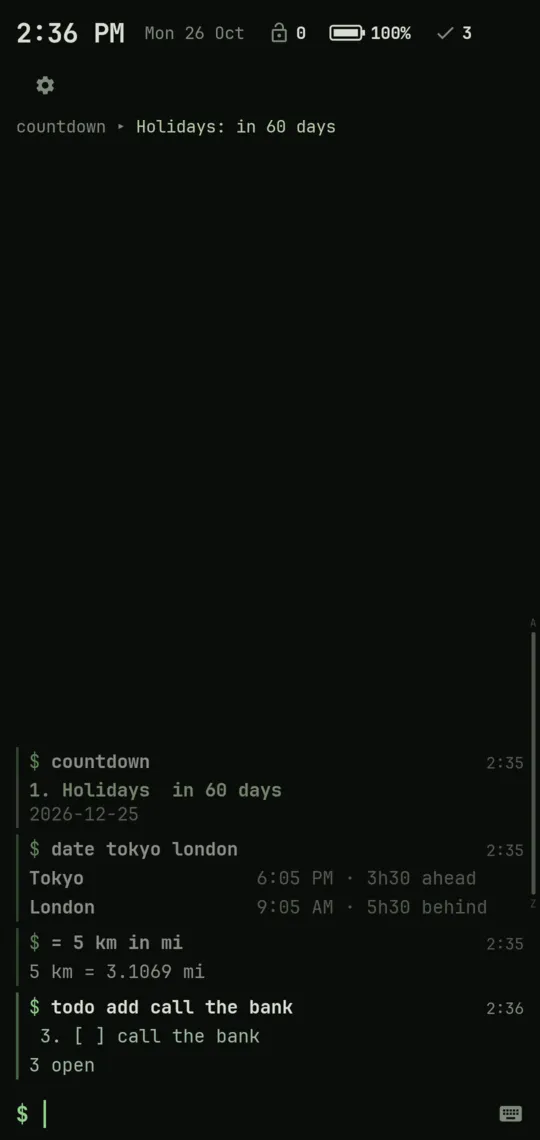
- Clock and date. Tap for your alarms.
- Header items: unlocks, battery, open to-dos and the rest, each one tappable.
- ⚙︎ opens Settings.
- Header line: a script’s status line (here, countdown’s). Tap it to run the script.
- Empty log space. Tap it for the keyboard; double-tap it to lock the screen.
- A group: a command and its output, with a gap above it.
- Gutter bar: green beside commands, a script’s colour beside its lines, red beside errors.
- Time, on each group’s first line.
- A command you typed. Tap it to put it back in the prompt.
- Output. Long-press any line for its actions.
- Prompt (
$). Tap the$for quick actions. - Key bar button (⌨): turns the key bar on or off.
- App selector handle, on the edge, when the app selector is on.
While you type
Section titled “While you type”The header shrinks so the suggestions get the room, and the key bar sits on the keyboard.
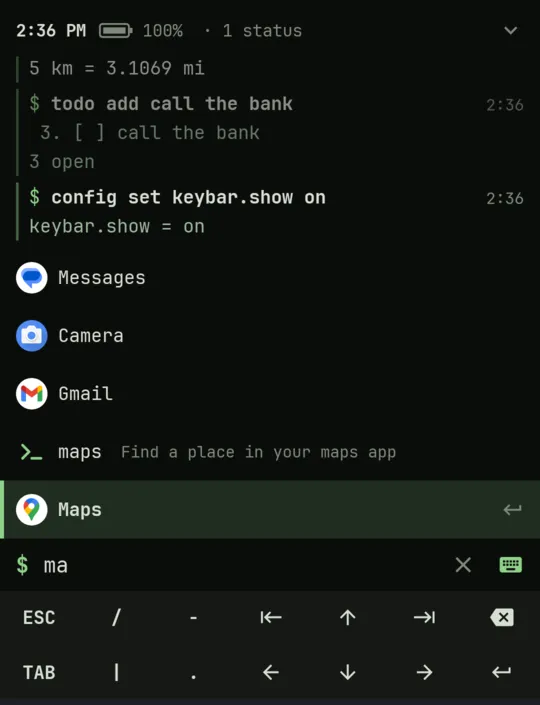
- The header, one line while you type, with how many status lines it hides.
- Expand: the whole header again.
- The log, older output dimmed.
- Suggestion strip: the apps, commands and settings that match.
- A command suggestion, with what it does.
- Best match, highlighted at the bottom, nearest your thumb: Enter (↵) opens it.
- The prompt, with what you typed.
- Clear (✕) empties the prompt.
- Key bar: the keys a terminal needs (history, Tab, arrows, Enter), above the keyboard.
App selector
Section titled “App selector”Turn it on in Settings → App selector. Touch the edge where the handle is, slide along it to a letter, slide off onto the list to an app, and lift. Basics has the details.
Sliding along the edge
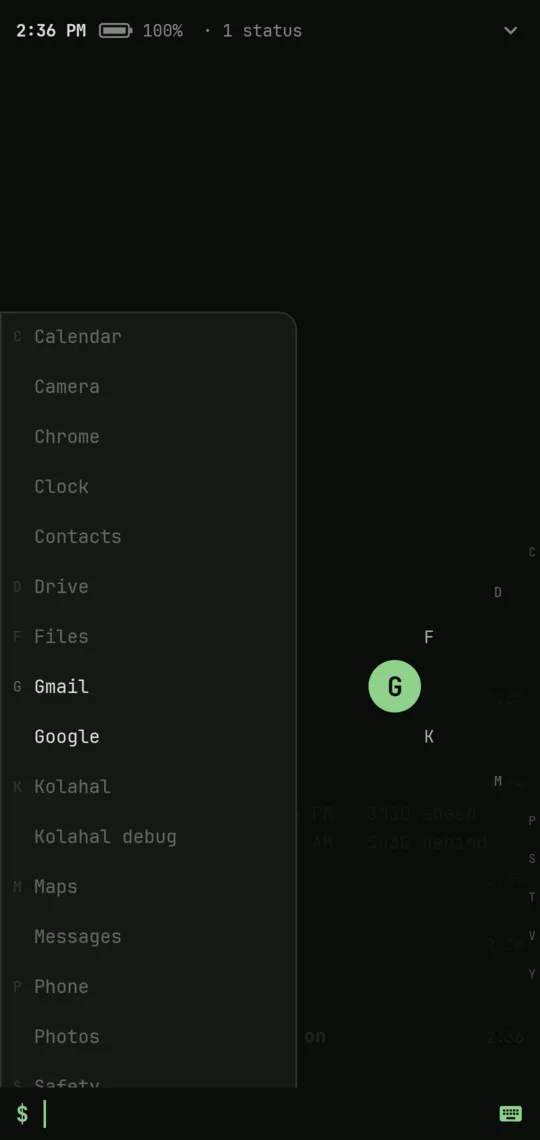
- Panel: every app in one list, favourites (★) first or last, then A to Z.
- Section letter, in the panel’s margin.
- The letter’s apps, bright, starting level with your thumb.
- Other letters’ apps, faded back.
- Bubble: the letter you’re on, big beside your thumb.
- Wave: the letters next to it, bulging out so you see which way to go.
- Strip: the part of the edge you slide on, each letter where its stretch is.
- Home, dimmed while the selector is open.
Picking from the list
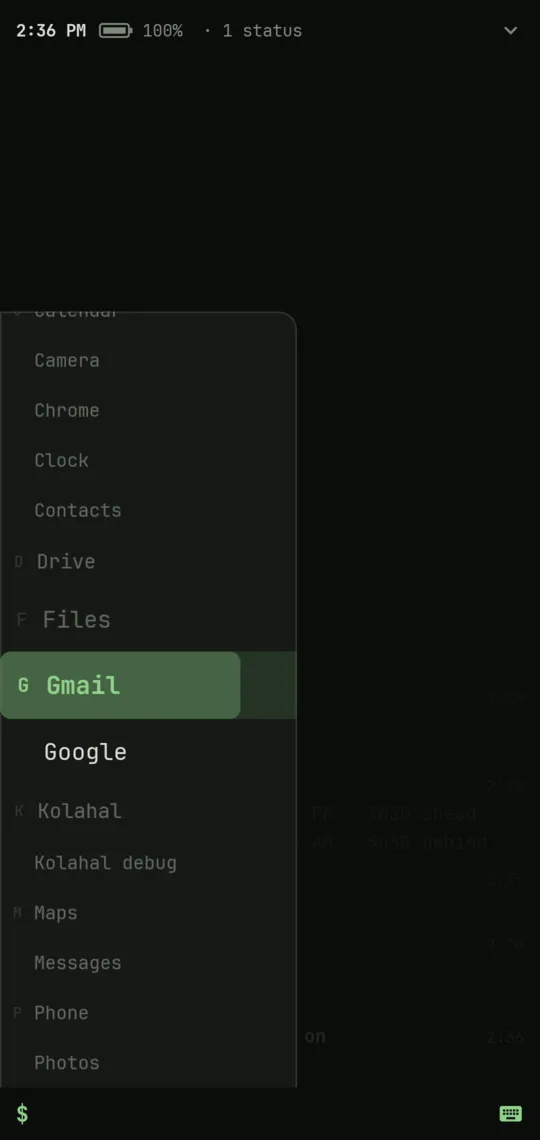
- The app at your thumb, magnified; move up and down to change it, lift to open it.
- Hold fill: hold still and the row fills; when it’s full, the app opens.
- Its neighbours, a little larger, so you can see where you are.
Left open (lift on the edge)
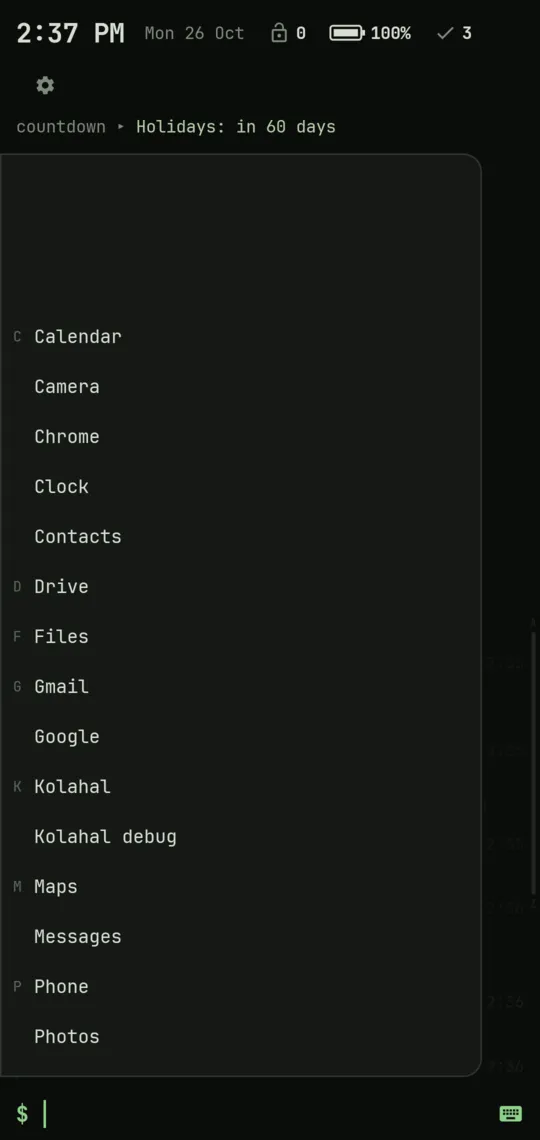
- The list, left open, almost as wide as the screen, so your thumb reaches every row. Fling it, tap an app, or long-press one for its actions.
- Room at its start, so the letter you tapped keeps its apps beside it.
- Strip: slide along it again from here.
Action sheet and quick actions
Section titled “Action sheet and quick actions”Long-press a line in the log for its action sheet; tap the $ for quick actions.
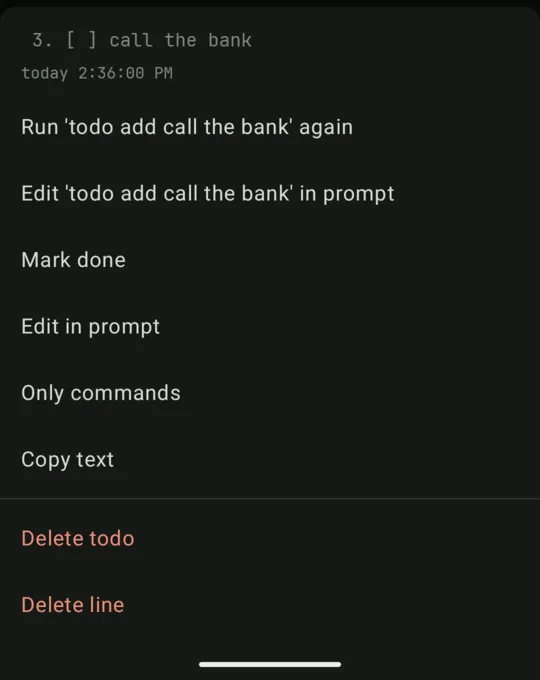
- The line you long-pressed.
- When it arrived, to the second.
- Its actions: run again, edit in the prompt, copy, and whatever else applies to the line.
- Delete, in red, last.
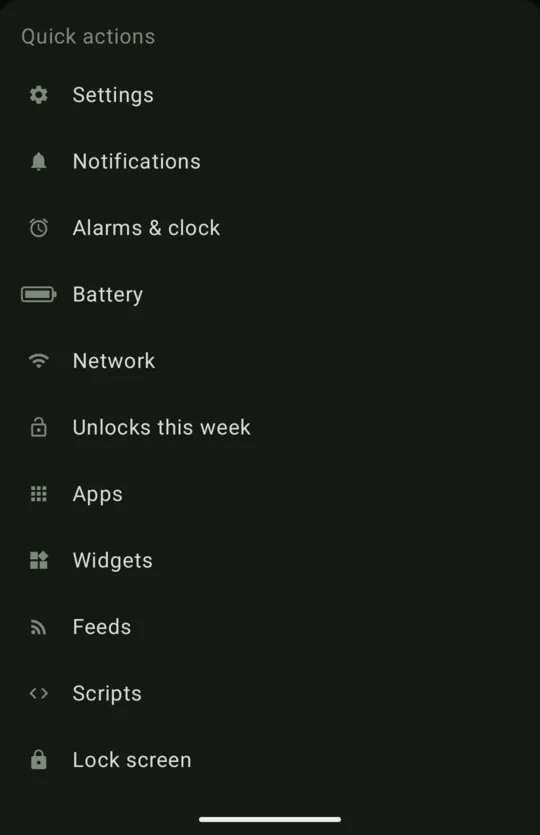
- Quick actions: what the header offers, within reach of your thumb.
- Live icons: battery and network as they are right now.
Widgets page
Section titled “Widgets page”Swipe sideways on home to reach it. See Widgets.
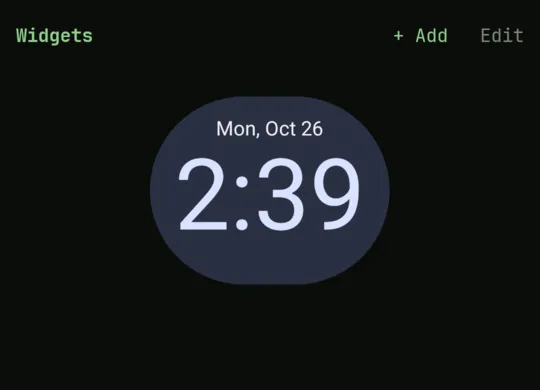
- Widgets page, beside the terminal.
- + Add a widget.
- Edit: size and move your widgets.
- A widget.
Settings
Section titled “Settings”Tap ⚙︎ in the header, or type settings. See Themes & settings.
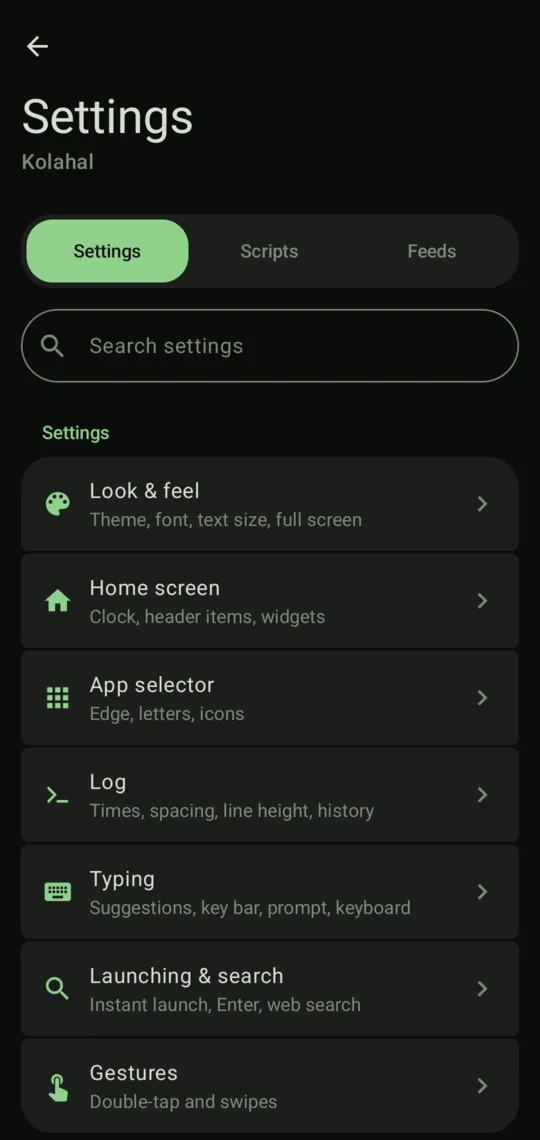
- Settings tab: every setting, page by page.
- Scripts tab: the script manager.
- Feeds tab.
- Search: finds any setting.
- A page of related settings.
Scripts tab
Section titled “Scripts tab”The script manager: a card per script. See Scripting.
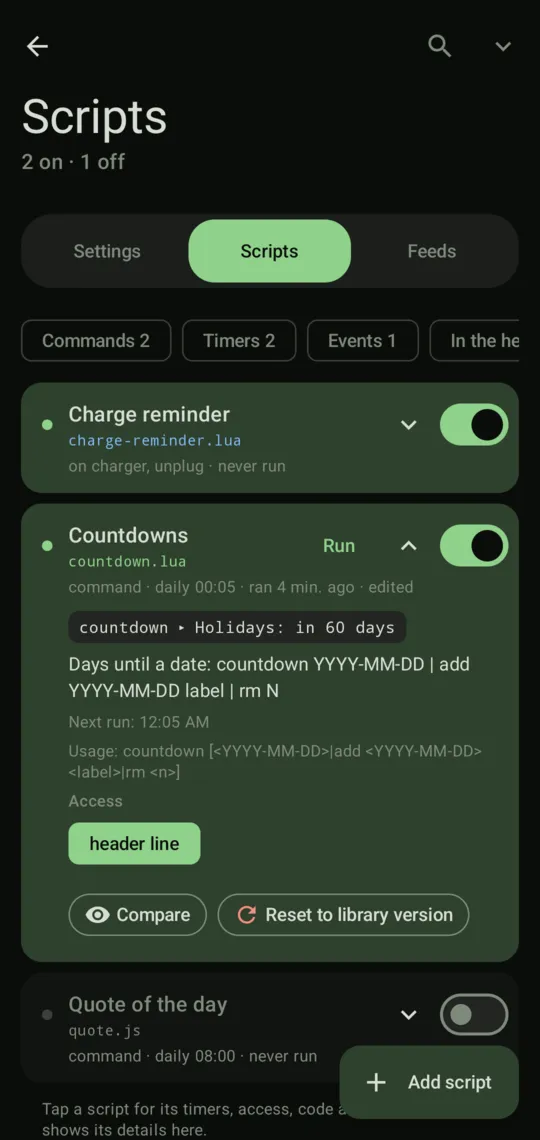
- Filter chips: commands, timers, events, failed, off, differs from the library and more, each with how many.
- Search scripts by name.
- All details: opens or closes every card’s details.
- A script that’s on: its card is tinted in the theme’s colour.
- Dot: on, failed (red) or off (grey).
- Title and file name.
- Run, for a command script.
- Details arrow: this card’s details.
- On/off switch.
- Summary: how it runs, its last run, and “edited” if you changed it.
- Its header line, as it is now.
- Pills: what it may use, filled when on and faded when off; a tap switches one.
- Compare your copy with the library version.
- Reset to library version.
- A script that’s off: its card fades.
- Add script: write one, or take one from the library, from other people or from a file.
Script editor
Section titled “Script editor”script edit <name>, or Edit in a script’s sheet. See Editor.
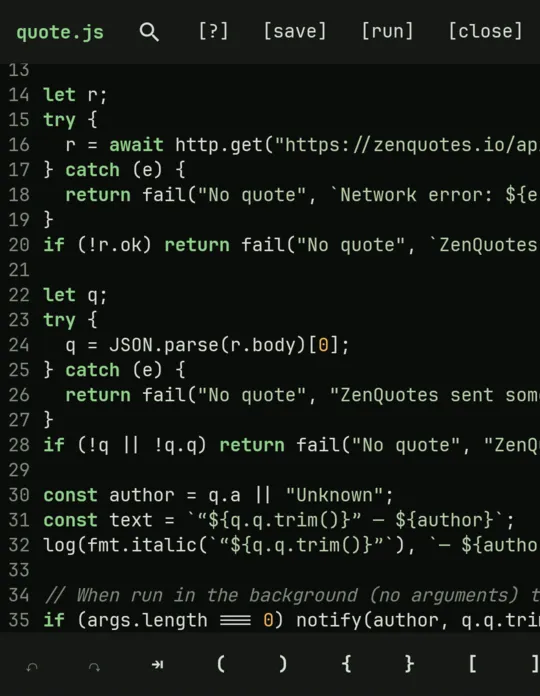
- File name, with
*while there are unsaved changes. - Find (and replace).
- [?]: the whole scripting API, in short.
- [save]
- [run]: saves, then runs it; its lines show under the code. A long press runs it with words as its arguments, or as one of its events.
- [close]: saves and closes.
- Line numbers.
- Undo and redo.
- Symbol bar: the brackets and symbols code needs, above the keyboard.