
Basics
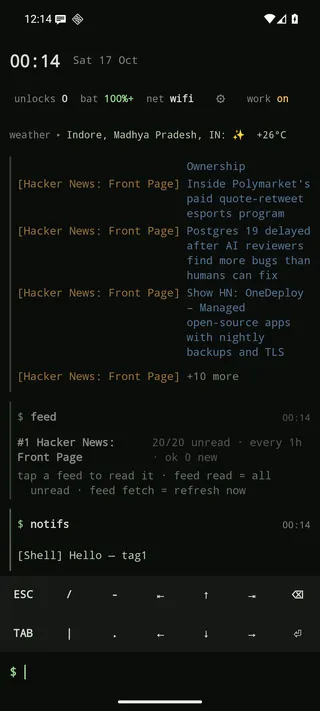
The home screen has four parts, from top to bottom: the header, the log, the
suggestion strip, and the prompt ($), with the key bar below it while you type.
The prompt
Section titled “The prompt”Type a command, or any part of an app name, and press Enter.
- Commands come first:
helplists them all, grouped. See the command reference. - Aliases you defined with
alias m = open mapsexpand before anything else. - Script commands are scripts marked
@command. They run by name with arguments. - Anything else is an app name. Enter launches the best match, which is the highlighted first
suggestion chip. More precisely:
- an exact label match launches;
- if only one app matches, it launches (
launch.single); - if the top match starts with what you typed, it launches (
launch.top); - otherwise you get a grid of up to 12 matching apps to tap.
- new Instant launch (
launch.instant, defaultall): as soon as what you typed can only mean one app, it opens without Enter. With apps Groww and Grove,grovopens Grove andgrowopens Groww. The same app in several profiles counts as one match (the copy you use most opens), unless two of those profiles are on: with the work profile running,gmopens nothing and suggests both Gmails (Gmail and Gmail [W]) for you to pick.launch.instant allalso runs commands that take no arguments, and aliases, this way (settiopens settings;contactswaits for Enter so you can still typecontacts bob), and makes a tapped history line run immediately. new A line with arguments runs too once there is nothing left to choose, whether typed, picked from the suggestions or tapped in the log:torch on,dnd off,ring silent,media pause.torch o,volume up(a number could go there instead) andapps work(-lcould follow) wait for Enter. Sensitive commands never run without Enter:call,sms,uninstall,work,private,clear,restart,lock,script,config,aliasand similar. Calls always open the dialer, so you confirm there.launch.instant-letters(default 2) is how many letters to type first;launch.instant offturns it off. - A mistyped command gets a tappable “did you mean” that puts the corrected command in the prompt.
= <expression>is a calculator and unit converter.
Suggestions
Section titled “Suggestions”The strip is hidden on an idle home screen and appears while you type (the on-screen keyboard is
up, or there is text in the prompt); suggestions.auto off keeps it always visible.
The strip above the prompt changes as you type:
- Empty prompt: your pinned favourites first, then your most-used apps, ranked
by frecency (how often and how recently you opened them).
Off by default; turn it on with
config set suggestions.idle on. - First word: up to three matching commands, aliases or script commands, plus matching apps. When Enter would launch an app, that app is the first, highlighted chip, so Enter, Tab and the highlight always agree.
- Arguments: almost every command completes what comes next.
- App names after
open,info,hide,rename,pin,shortcuts,notifs muteand similar. Afteropen maps:you get that app’s shortcuts. - Contacts after
call,smsandcontacts: favourites first, then everyone, even before you type a name. A contact with several numbers shows one row per number, and choosing one fills in that number. - Script names after
script run|edit|…, keys and values afterconfig, theme and font names, feeds afterfeed read|rm|…, aliases afterunalias, status lines afterstatus clear. - The options a command’s usage lists, such as
apps work|personal|…,clear history|all,torch on|offordnd alarms. - Your earlier commands that start with what you typed, so
searchorytoffers your past queries.
- App names after
Command chips start with $ ($ maps), app chips show the app name, and a ✕ at the end of the
prompt clears it. Tap a chip to use it. Tab (on the key bar or a hardware keyboard) takes the first one. The number
of chips is suggestions.max (default 30).
By default (suggestions.style list) the suggestions are a list stacked directly above the
prompt instead of chips: the best match sits at the bottom, nearest your thumb, highlighted with
a ⏎ because it is what Enter and Tab act on. Command rows show $ name and the command’s short
description, cut to one line (new suggestions.wrap on shows all of it, over more lines); app rows show the profile tag. The list takes at most about 40% of the screen, and
never more than the room above the prompt, so the prompt stays in view; it scrolls beyond that. Long-press an app row for its actions. config set suggestions.style chips
brings back the chip strip (suggestions.rows applies to chips only). Turn on Show app icons
(suggestions.icons, off by default) for each app’s icon in front of its name, in both styles (commands get a
terminal icon in the same place, so every name lines up); work and
private apps carry the system’s profile badge.
App selector
Section titled “App selector”While the keyboard is down, a slim handle sits on the right edge of the log (selector.rail,
on by default). It opens an app selector that you drive with one thumb, no typing needed.
- Touch the right edge. A panel slides in over the log listing all your apps in one list:
your favourites first (★), then everything alphabetically, with small section letters in the
margin (
#holds apps that start with a digit, a symbol or a non-Latin letter). Work and private apps carry their[W]/[S]tags, paused profiles are faded and hidden apps are left out. About 20 apps fit on screen at once. - Slide along the edge to glide through the whole list. The thumb’s height maps smoothly onto the list (top of the edge = first app, bottom = last), so small moves give fine control and a long slide crosses the alphabet. The app under your thumb is magnified, its neighbours a little less, and a bubble beside your thumb shows the current letter. A light tick marks each new letter.
- Slide left into the panel and the list holds still: move up or down to pick an app (near the panel’s top or bottom it keeps scrolling), then lift to launch it. Hold still on an app for about half a second for its actions (the same sheet as long-pressing an app). To back out without launching, slide back onto the edge before you lift.
- Lift on the edge and the panel stays open as a normal list: fling it, tap an app to launch, long-press for its actions, or slide the edge again. A tap elsewhere, Back, or 4 idle seconds close it.
Android lets an app keep at most 200dp of each screen edge from the back gesture, so only the middle 200dp of the edge does; above and below it a swipe in from the edge still goes back.
The log
Section titled “The log”The log is split into groups, with a gap above each one (log.spacing, 0–40 dp). A group is a
command you typed and its output, a background run under its ── … ── header, or lines that
arrived together. A line that arrives on its own more than 3 seconds after the previous one, such
as a tap launch, an app install or a notification, starts its own group. A thin coloured bar beside
each line shows where it came from: green for commands, the script colour for background output,
red for errors. Hide it with log.gutter off. Output older than the latest command is dimmed
(log.dim).
- Day separators, and right-aligned times on commands (
log.time:off,commands,all). help,configandscript lsrender in two columns;appsis a grid of tappable chips.- Each script run gets a
── hn · 22:40 ──header and a stable per-script colour. Script, feed and notification lines name their source at the end, muted (Show HN: … · Hacker News). Lines that arrived while you were away are marked•under a “N new since you left” divider. - new Fresh screen (
log.fresh, 10 minutes): come back to home after a while and it starts clean, so old output and app grids are not under your thumb. Nothing is deleted: tap “▴ N earlier lines” to bring it back.freshdoes the same on demand (and isn’t logged itself). Script lines that arrived while you were away stay visible. - When you scroll up, a ↓ button jumps back to the newest lines. Repeating a command with nothing
printed in between (
settings,settings) doesn’t add another line. - Scroll to the top to load older entries. Entries older than
log.keep-days(60) are trimmed. clearclears the screen,clear historyforgets the ↑ history but keeps the log, andclear allremoves both.
new Filter a command’s output like a shell:
help | grep feed # rows mentioning "feed" (the description column counts too)history | tail 5 # last five commandsfeed read | grep -v sponsored | head 3contacts | count # how many linesconfig | sortFilters: grep [-v] <pattern> (case-insensitive regex; an invalid regex is matched literally),
head [n], tail [n] (default 10), sort [-r], uniq, count (or wc). Error lines always come
through. Only output the command prints right away is filtered; replies that arrive later (network
requests, scripts) are written as usual. A | only starts a filter when a filter name follows it,
so js a || b and Lua code are left alone.
Tap and long-press
Section titled “Tap and long-press”Tap a line for its main action:
| Line | Tap does |
|---|---|
| A command you typed | puts it back in the prompt |
| An app line or chip | launches the app |
| A link (feed item, search, script line with a URL) | opens it |
| A phone number or contact | opens the dialer |
| A notification | opens it (or the app, if it’s gone) |
| An app shortcut | starts it |
| A setup or hint line | runs its fix command |
| A script error | opens the editor at the failing line |
Long-press opens an action sheet with everything that applies: run again, edit in prompt, copy output, open, share or copy a link, call, message or copy a number, launch in another profile, app shortcuts, app info, hide, uninstall, run or edit a script, dismiss a notification or mute its app, copy text, and delete the line or the whole block.
One-handed use
Section titled “One-handed use”- Quick actions: tap the
$at the start of the prompt for everything the header offers — settings, notifications, alarms, battery, network, unlocks, pause / resume the work or private profile, apps, widgets, feeds, scripts and lock, with the header’s icons (battery and network as they are now). Any gesture can open it too (quick). - Swipe a log line: right copies it, left deletes it (with UNDO for a few seconds).
- Long-press output to run or edit the command that printed it.
- Two rows of suggestions while typing (
suggestions.rows).
The header
Section titled “The header”A large clock and date, then unlocks, battery, network, next alarm, profile state and ⚙, shown
as icons: the battery is drawn to its charge level (green with a bolt while charging, red when
low), and the network icon shows Wi-Fi, mobile or offline. header.icons off brings back the
text labels (bat, net, …). Every item is tappable:
| Item | Tap | Config key |
|---|---|---|
| Clock, next alarm | opens your alarms | clock.24h, header.date, header.alarm |
unlocks |
runs unlocks 7 |
header.unlocks |
bat |
battery usage | header.battery |
net |
network settings | header.network |
work / private |
resumes a paused profile; pausing asks for a second tap | header.profiles |
| ⚙ | the settings screen | |
| Script status lines | runs that script | header.status |
new Auto-hide (header.autohide, on by default): while you scroll back through older output the header
disappears entirely; scrolling toward the newest lines (or running a command) brings it back as one
line with the time, battery and the number of hidden status lines. Tap it or swipe down on it to expand it; pressing Home, coming back from an app or clear
also brings it back.
new While you type (the keyboard is up, or there is text in the prompt), the header shrinks to that one line and home-screen widgets fold away, so the suggestions get the room. It comes back as it was when you’re done.
header.device adds a kolahal@device line. Swipe down on the header to pull down the
notification shade (a gesture you can change).
The key bar
Section titled “The key bar”The bar appears only while the on-screen keyboard is up for the prompt, so an idle home screen
shows more of the log (keybar.auto off keeps it always visible). new It sits
below the prompt, right on top of the keyboard, so the best suggestion stays just above what you type.
The ⌨ button at the right end of the prompt line turns the bar on or off (keybar.show, off by default); it is
green while the bar is on.
Make it and the prompt slimmer while typing with keybar.height (row height, 20–64 dp) and
prompt.height (20–72 dp), also under Settings → Typing.
For a denser screen, log.line-height (Settings → Log) sets the minimum height of log lines and
chips.height the height of suggestion and app-grid chips.
Touch keyboards lack the keys a terminal needs, so Kolahal adds a two-row bar:
ESC / - ⇤ ↑ ⇥ ⌫TAB | . ← ↓ → ⏎↑/↓walk the command history;TABcompletes;ESCclears the prompt;⇤/⇥jump to the start or end.- Arrows and backspace repeat while held, and dragging sideways across the bar moves the cursor.
- Both rows are configurable:
keybar.row1andkeybar.row2take comma-separated keys fromESC TAB UP DOWN LEFT RIGHT HOME END BKSP ENTER SPACE KBD, or any literal text.KBDshows the soft keyboard. Clear Key bar, row 2 in Settings for a single row, or hide the bar withkeybar.show off.
config set keybar.row1 ESC,TAB,UP,DOWN,|,~,KBDconfig reset keybar.row1 # back to the default row- Tap empty log space to bring up the keyboard (
keyboard.on-home onopens it every time Home is shown). - Pinch the log to resize the text (
font.size, 10–24). - Double-tap empty log space to lock the screen, and swipe up on the prompt for the app grid. See Gestures.
Hardware keyboard
Section titled “Hardware keyboard”| Key | At the prompt |
|---|---|
↑ / ↓ |
history |
Tab |
complete with the first suggestion |
Esc, Ctrl+U |
clear the line |
Enter |
run |
Ctrl+L |
clear the screen |
Ctrl+A / Ctrl+E |
start / end of line |
The script editor has its own shortcuts; see Editor.